

 English
Description of the process
To ensure impeccable cleanliness, an excellent night’s sleep and a great Wi-Fi connection, a daily inspection is made of some of the apartments once they have been cleaned.
This inspection covers the cleanliness and hygiene of the bedroom and bathroom, the presence of welcome documents and products, maintenance issues and Wi-Fi availability. The results obtained are aggregated and analysed by managers to inform their decision-making.
Application
Description
The Room Check application is used to carry out inspections of cleaned apartments. After entering the details of the apartment, inspector and cleaner, the inspector indicates the non-compliant elements observed on the checklist.
It is possible to take photos, make notes and record any maintenance issues encountered. The application indicates whether Wi-Fi is available during the inspection.
The results obtained are available on the Dashboard.
Specifications
The marQ Room Check application has been designed to work on any smartphone or tablet using the Android or iOS operating systems and meeting the following requirements:
Android:
- Recommended version: 5.1 or newer
- Supported version: 4.1 or newer
iOS:
- Recommended version: 9 or newer
- Supported version: 8 or newer
Recommended smartphones
- Android smartphone: Motorola Moto G or newer
- iOS smartphone: Apple iPhone 5 or newer
Nb: You can use another device as long as it uses the version of the operating system supported by the application.
Recommended tablets (up to 10 inches)
- Android tablet: Samsung Galaxy Tab S or newer
- iOS tablet: Apple iPad Mini 2 or newer
Nb: You can use another device as long as it uses the version of the operating system supported by the application.
Installing the application
The video above explains how to install the application from the Play Store.
For the App Store, the process is the same. The difference is the need for a password to start the download.
Entering your credentials
The same credentials may be entered on more than one device.
Changing the language
Synchronising employees
After making alterations to the employee grid on the Dashboard (see topic ‘Managing employees’ in the Glossary), you will need to synchronise this with the application.
Undertaking an online inspection
The video shows an inspection undertaken with the Wi-Fi connected. When a mobile network is available, the inspection will also be sent.
Once the inspection is sent, the photos taken are deleted from your device.
Managing the inspection photos
The photos taken do not appear in the device’s photo gallery.
Deleting an inspection
When deleting an inspection, the photos taken are also deleted from the device.
Editing an inspection
When editing an inspection, the start time does not change.
It is not possible to edit the content after sending the inspection (with or without Internet).
Undertaking an offline inspection
When the inspection is carried out offline, the data is stored on the device. You should check that it has sufficient storage space.
Synchronising an inspection
The start and end time of an inspection is not changed by the time of synchronisation.
Inspection log
The log only stores inspections made from your device. To view inspections made by other inspectors, sign into the Dashboard.
Exiting the application
If the application closes while an inspection is being carried out, the latest modifications will not be saved.
Deleting data from the application
For Android devices, we recommend wiping data from the application if it is slow.
iOS devices do not offer this function, making it necessary to delete the application and re-download it from the App Store.
Remember that by doing so, you will lose your registered credentials and all data from the inspections (those sent, being edited and awaiting synchronisation).
In case of error
Please send a screenshot of the error to suporte@marqconsultoria.com.br
Dashboard
Description
The Dashboard is the panel of results obtained from the apartment checks to assist in decision-making.
Available information: number of inspections undertaken, outcome of compliance assessment and Wi-Fi availability, detailed overview of each inspection, with non-compliances by item and by cleaner.
Specifications
The Dashboard was designed to function on the following browsers:
- Recommended browsers: Google Chrome and Mozilla Firefox.
- Supported browsers: Google Chrome, Safari, Mozilla Firefox, Opera, Microsoft Edge and Internet Explorer 10 or newer.
Why are older versions of Internet Explorer not supported?
Operation of the application with older versions of Internet Explorer is not being treated as a priority, as Microsoft stopped providing support for all versions prior to 11 as of 12 January 2016.
We recommend other browsers for reasons of security, performance and stability.
Access the official announcement from Microsoft here.
Accessing the dashboard
Access to the Dashboard can be made via the link https://marqconsultoria.com.br/appdashboard
Entering your credentials
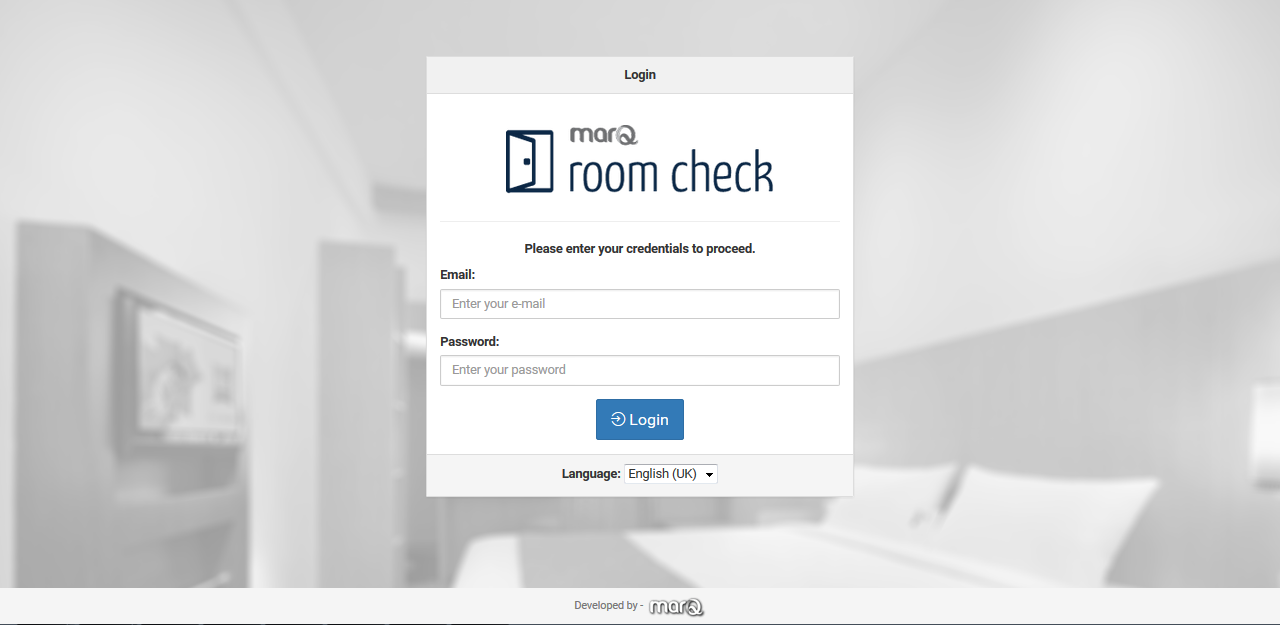
Enter your credentials and click ‘Enter’ to continue.
Today’s data
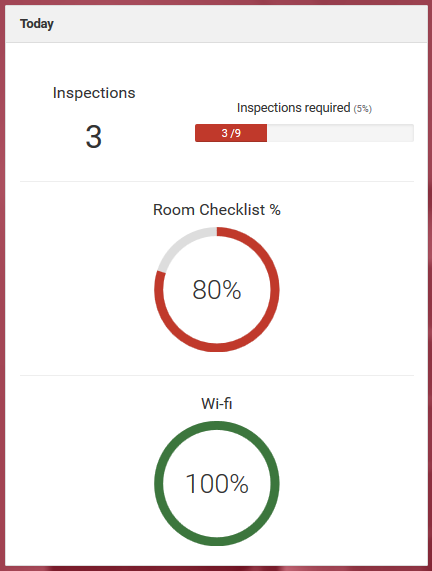
This panel displays the results of inspections made up to the current time: the number of inspections made and the number needed to reach the target, average compliance and percentage of apartments with Wi-Fi available.
Yesterday’s data
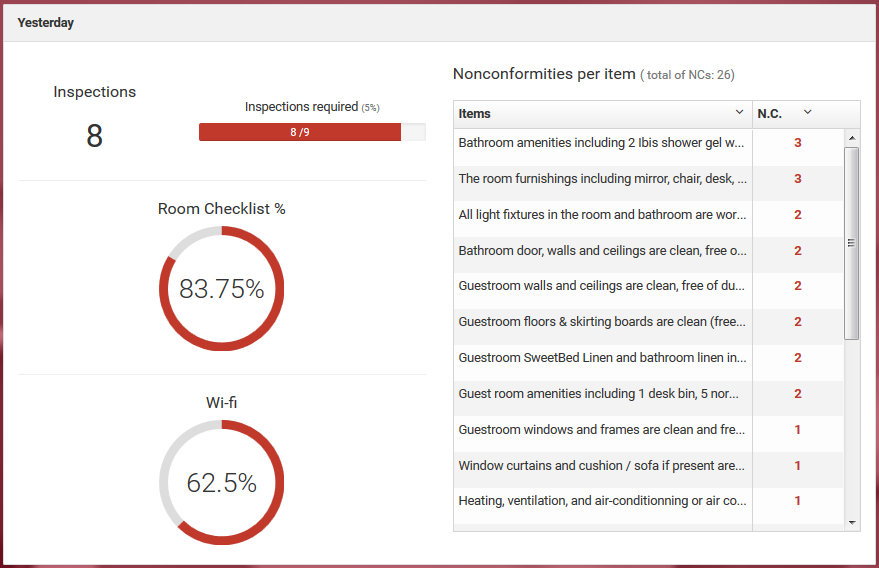
This panel displays the aggregated results from the previous day: average compliance from the previous day, attainment of the daily inspection target, percentage of apartments with Wi-Fi available, instances of nonconformities per inspection item.
Information by period
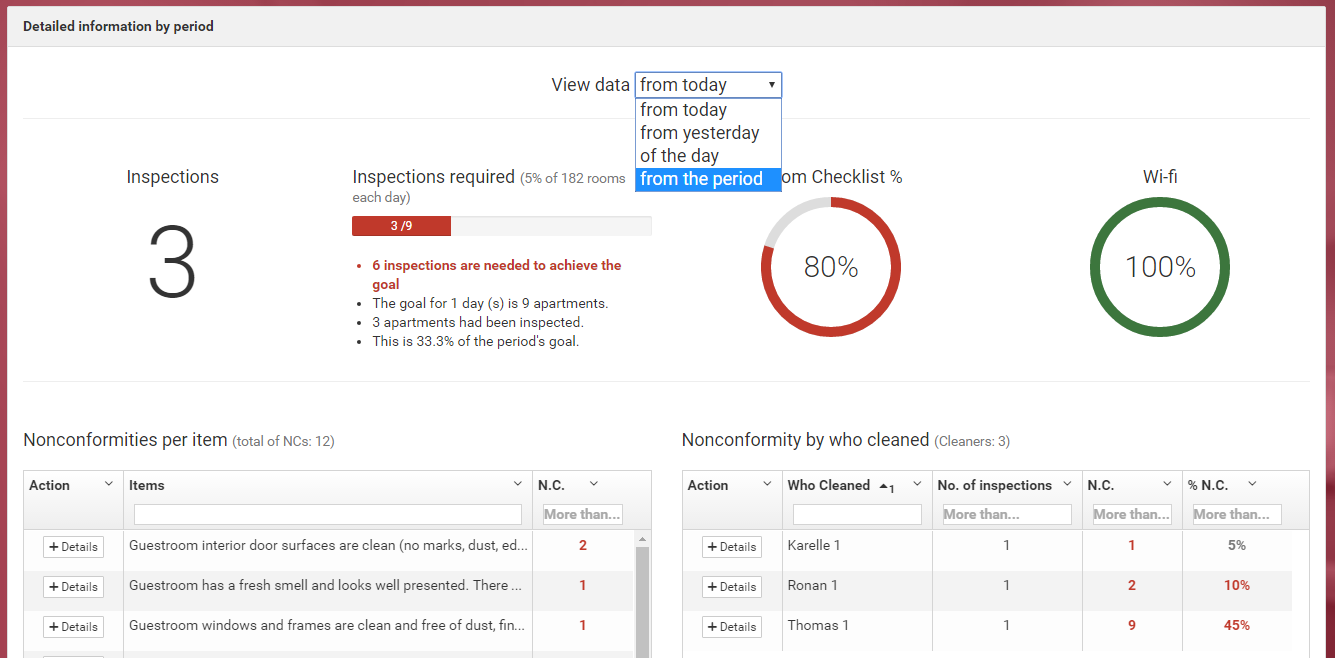
To obtain information for a particular day or period, just click the selection box and choose the appropriate option.
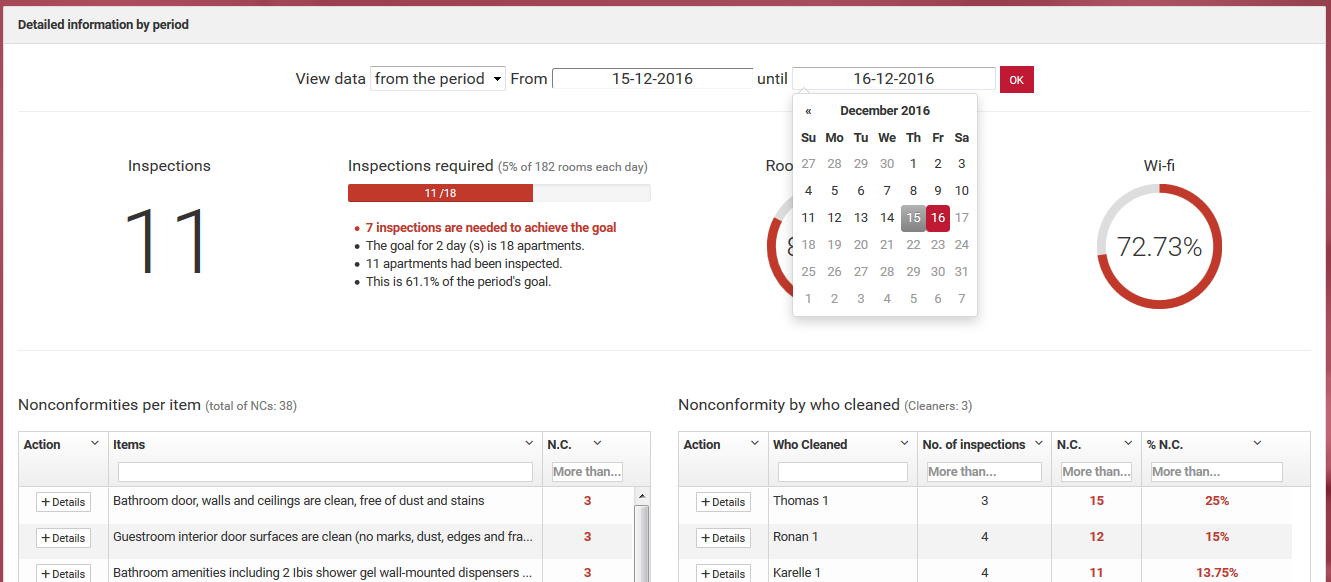
If the ‘OK’ button appears, click on it to load the selected information.
Nonconformities by item:
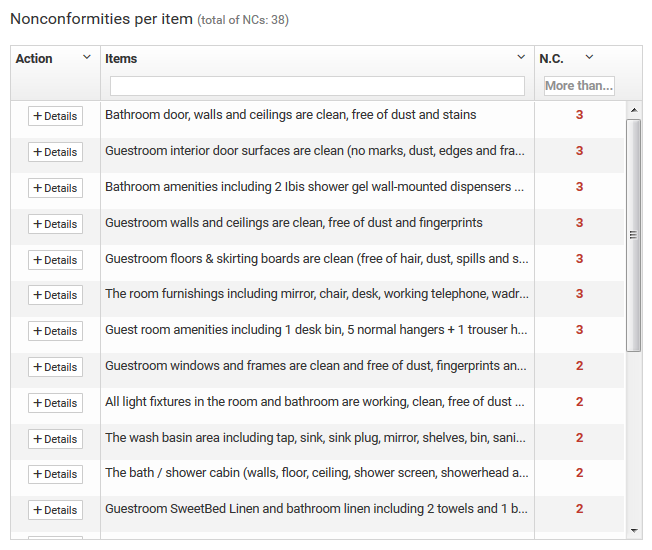
A table showing the number of nonconformities per inspection item for the selected period.
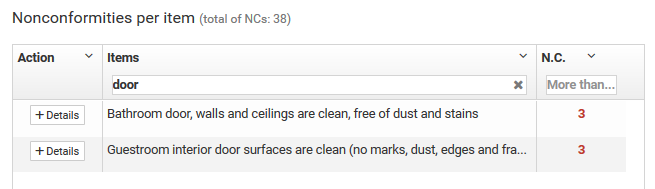
The information may be filtered by entering the desired term.
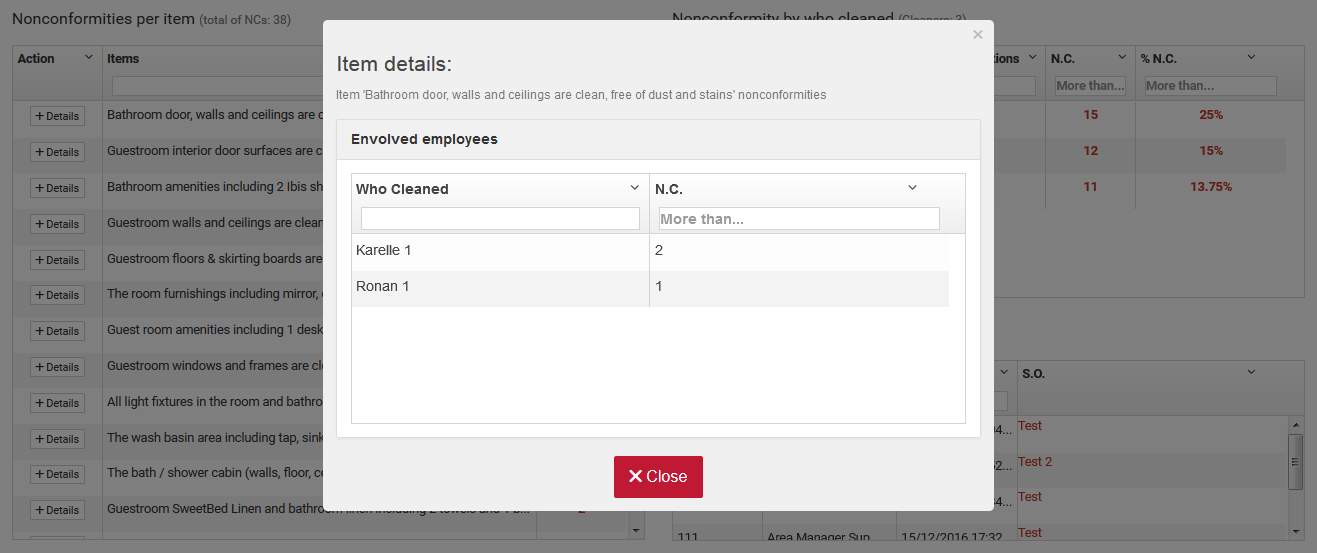
By clicking on ‘+ Details’, it is possible to view the number of nonconformities per item for each cleaner.
Nonconformity by cleaner:
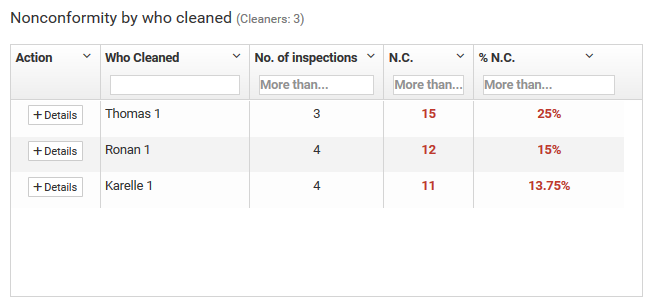
A table showing the number of inspections made and the number and percentage of nonconformities per cleaner for a selected period.
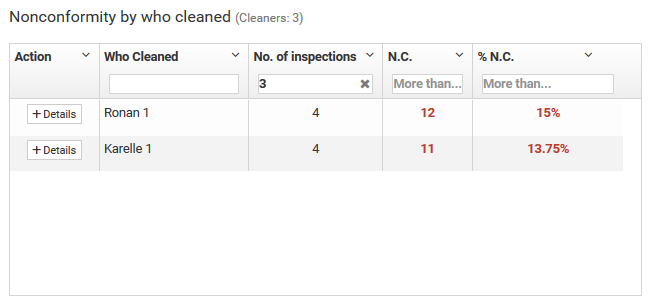
It is possible to filter the information by entering a desired term or number.
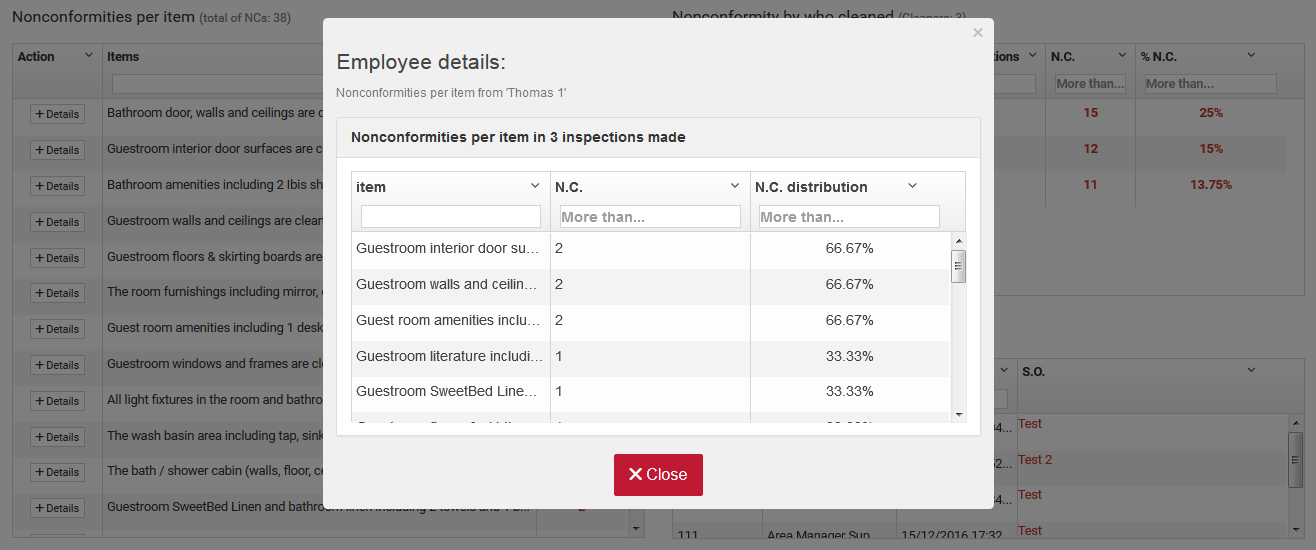
By clicking on ‘+ Details’, it is possible to view the number and percentage of nonconformities per item for the selected cleaner.
Service orders
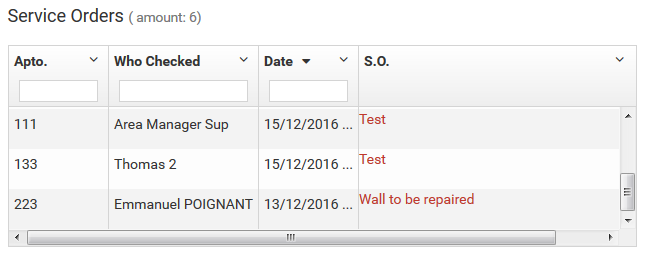
A table showing the service orders per inspection for the selected period.
Inspections by period
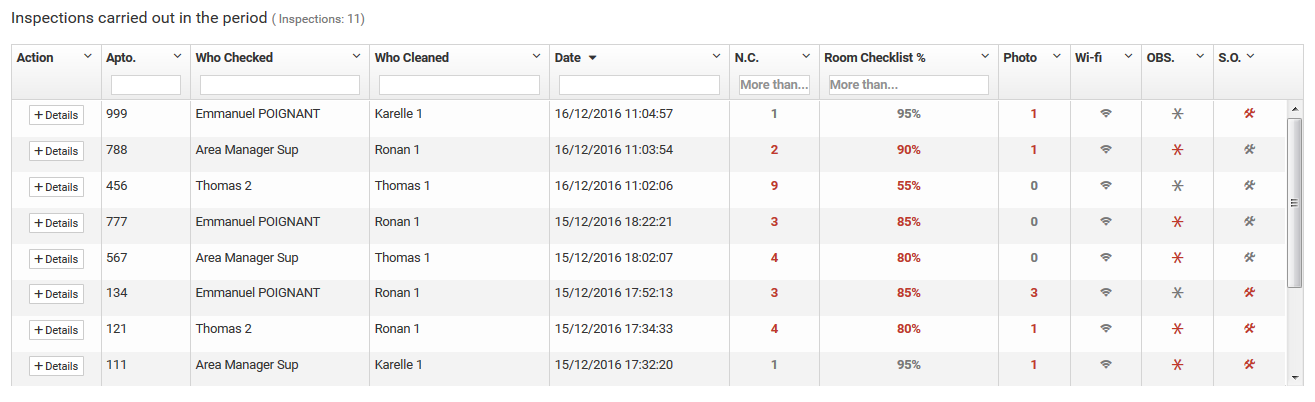
A table of all the inspections made in the selected period.
Key for the items in red:
- N.C. and Room Checklist %: result lower than 95%;
- Photo: there is a photo for the inspection;
- Wi-fi: Wi-Fi not available during the inspection, or the device was not connected to the hotel Wi-Fi;
- OBS: there is a note for the inspection;
- S.O.: a maintenance issue has been recorded, for a service order to be opened on Opera.
Filtering inspections:
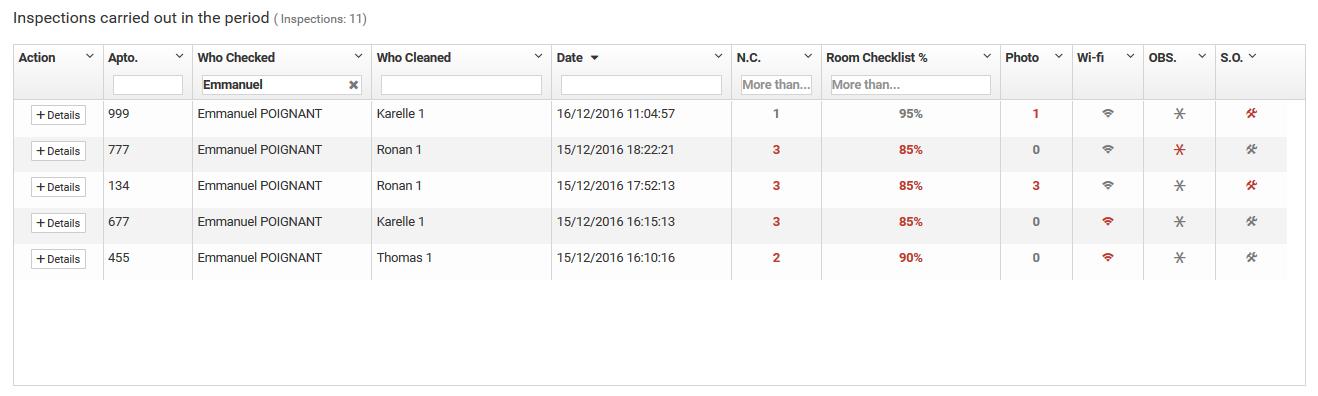
It is possible to filter the information by entering a desired term or number.
Inspection details:
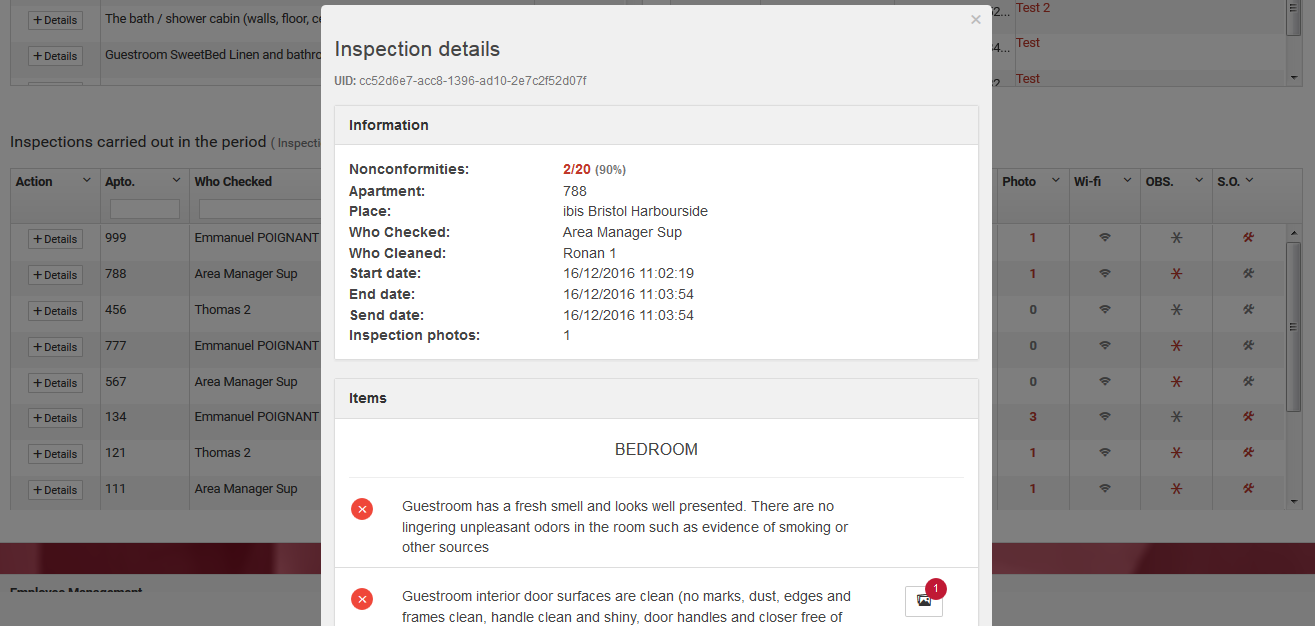
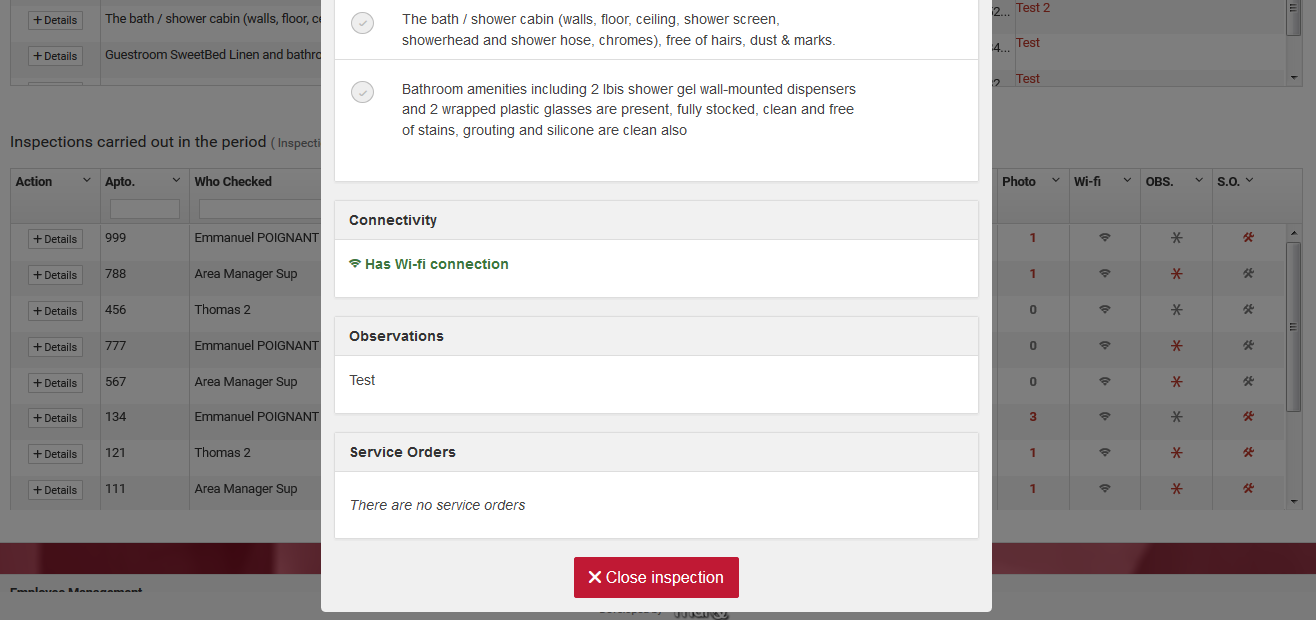
By clicking on ‘+ Details’, it is possible to view the details of the inspection: nonconformities, photos, Wi-Fi availability, notes, service orders, etc.
Viewing photos
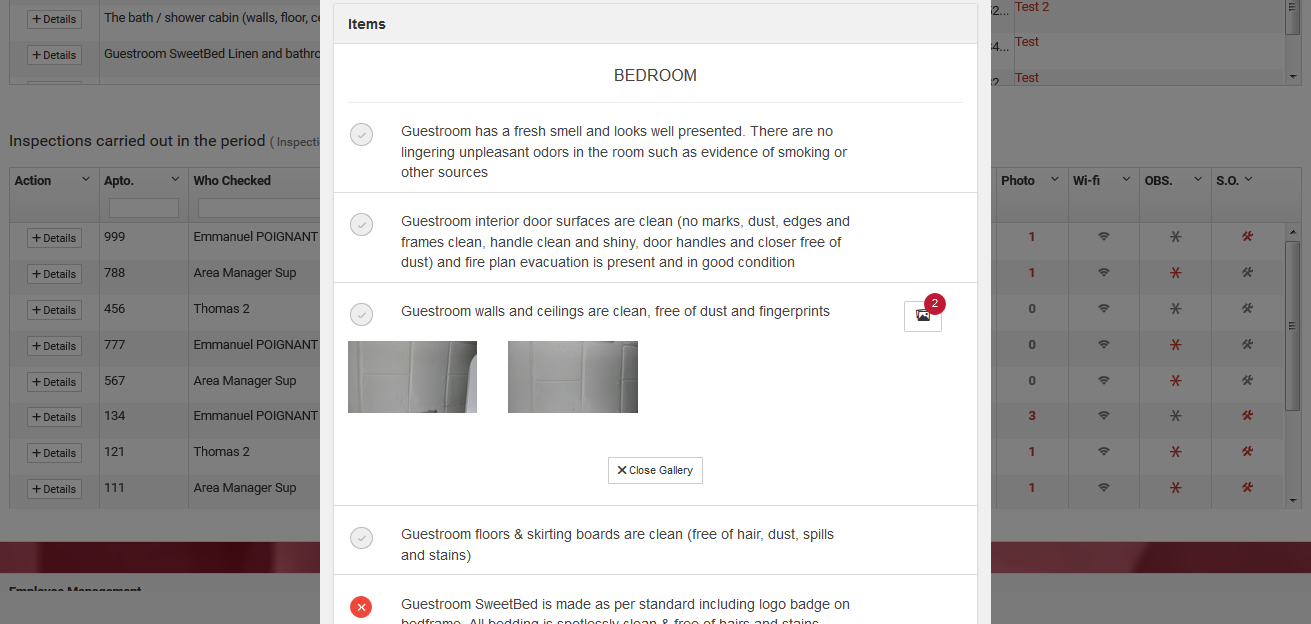
When accessing the details of an inspection, click on the button indicating the presence of photos. To zoom in, click on the photo.
Managing employees
Adding an employee:
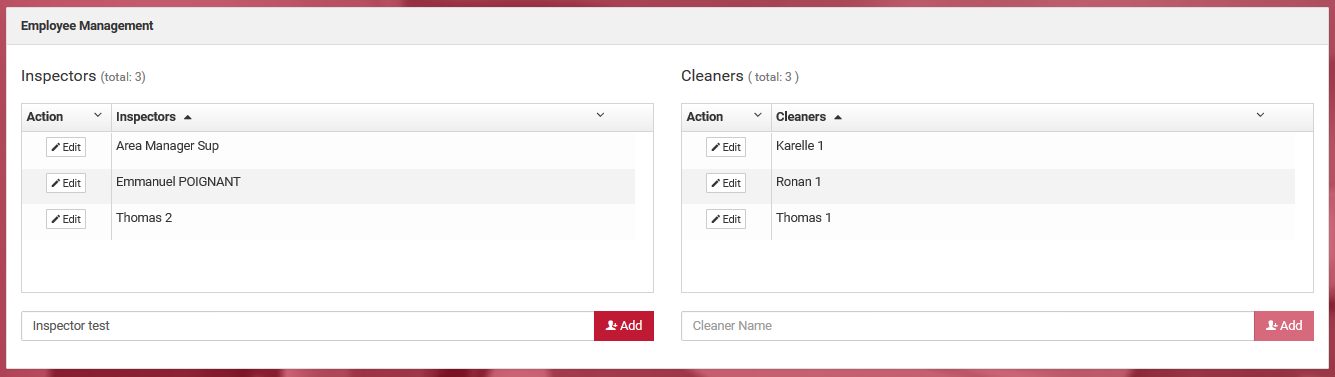
Enter the employee’s name (inspector or cleaner) and click on ‘Add’.
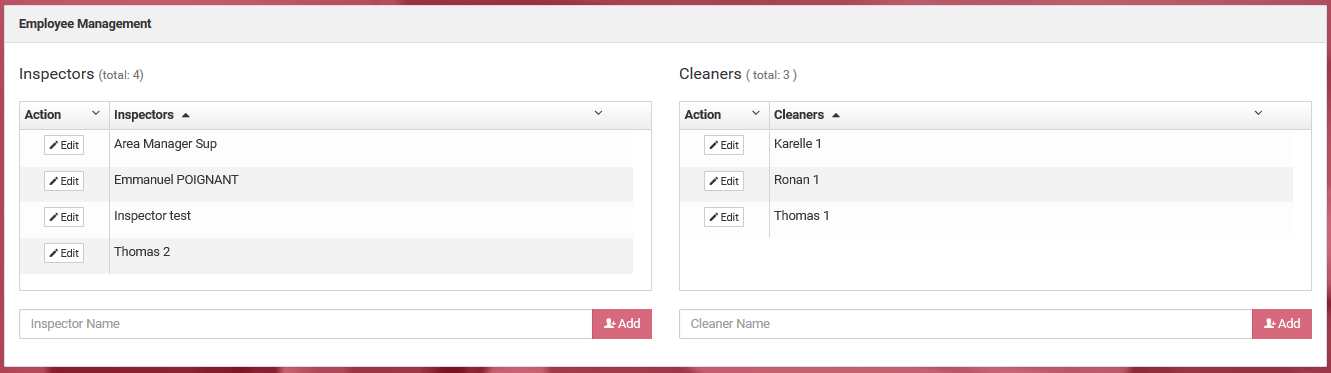
The name of the employee added will be entered into the table in alphabetical order. Check that it has been added correctly.
Editing an employee:
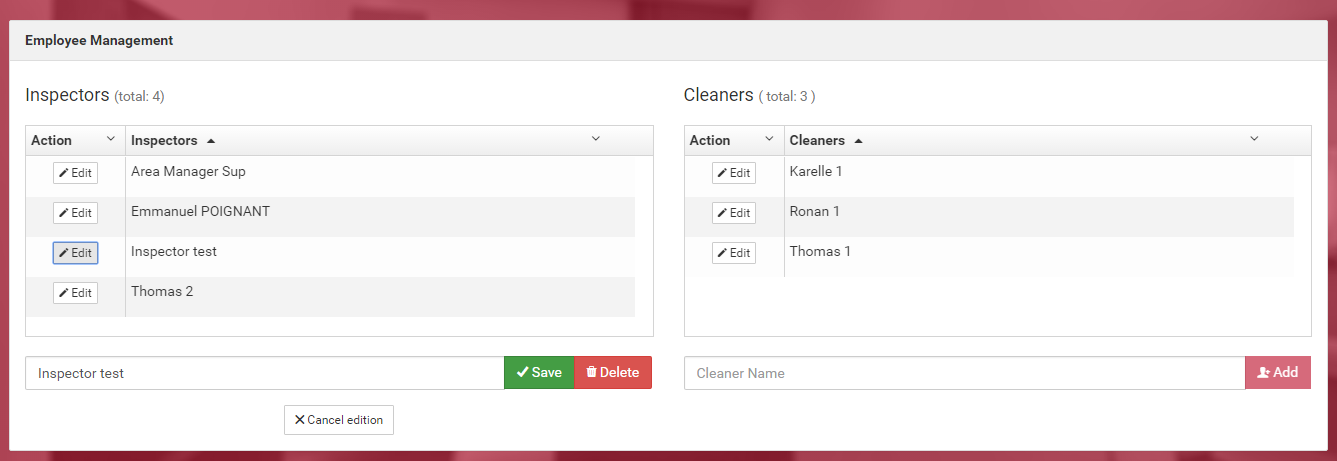
Click on the ‘Edit’ button next to the employee’s name (inspector or cleaner).
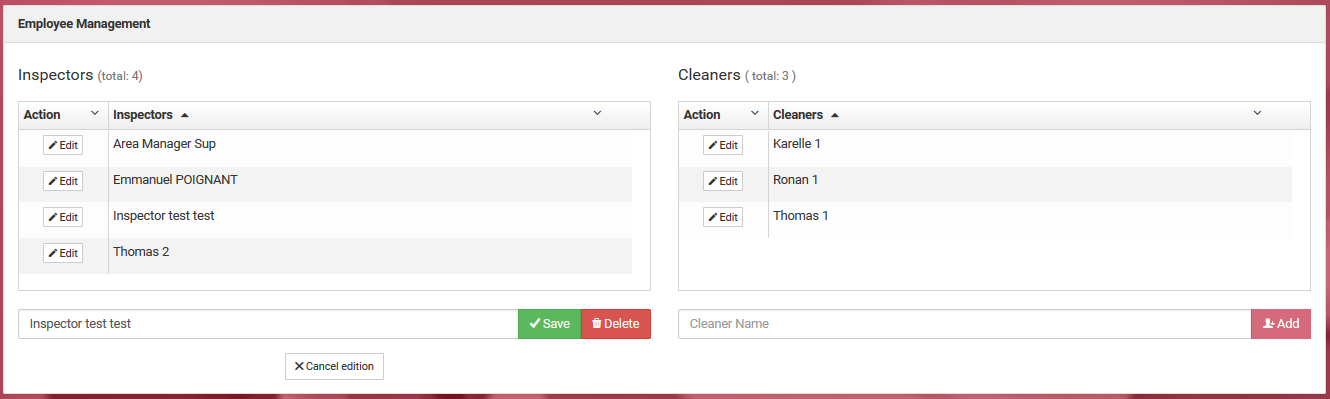
Make the desired modifications and click ‘Save’.
Deleting an employee:
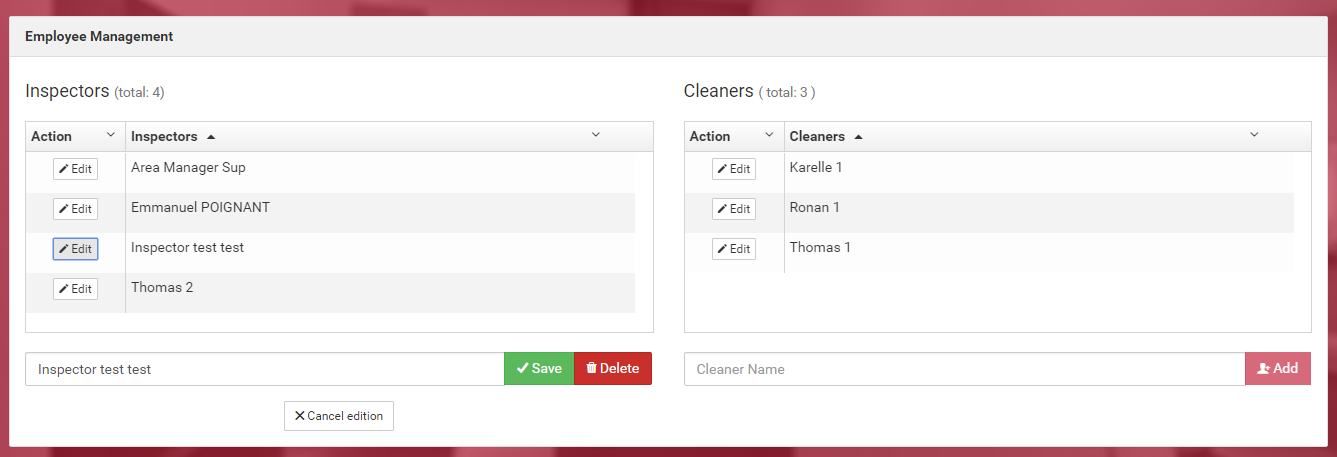
After clicking ‘Edit’, click ‘Delete’.
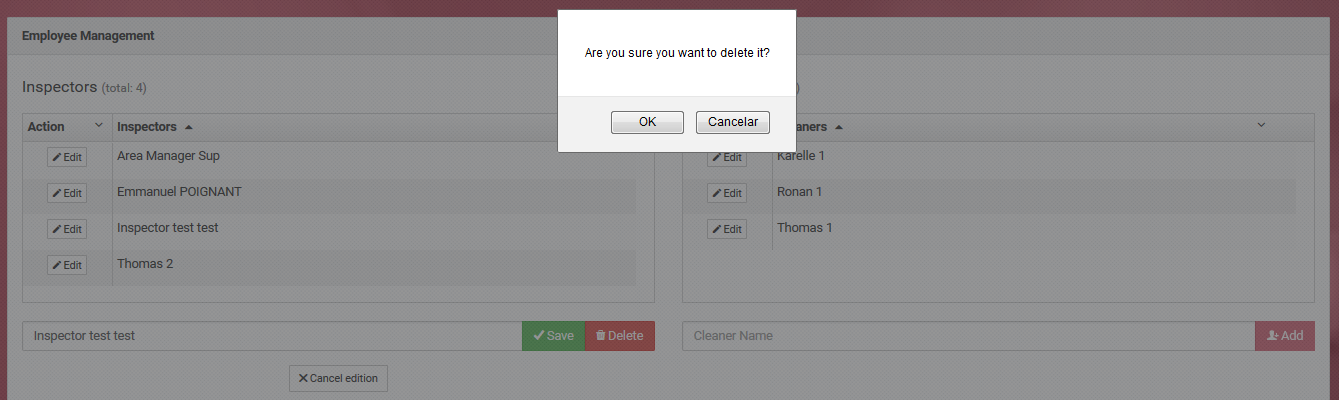
A confirmation message will appear. If you wish to proceed with the deletion, click ‘OK’. Remember that this action is irreversible.
Exiting the Dashboard

To exit the Dashboard, just click on ‘Logout’. You will be redirected to the login page.
In case of error
Send a screenshot of the error to suporte@marqconsultoria.com.br. Don’t forget to include the browser and version you are using in your email.
Questions and suggestions
If you have any other questions or suggestions, please contact us at:
- Email: suporte@marqconsultoria.com.br
- Telephone: +55 (11) 5561-5442